
When a server fails, most organisations expect business to continue without disruption. Behind that resilience is a set of services working continuously in the background. One of the most important in Windows environments is Distributed File System Replication, or DFSR.
While DFSR is designed for availability and consistency, it is also a service security teams need to understand. Because it touches critical folders such as SYSVOL and replicates data across domain controllers and file servers, any misuse or abnormal behaviour can have significant impact.
In this guide, we explore what DFSR does, where it is commonly used, and what SOC analysts should look for when monitoring and investigating activity tied to it.
What is Distributed File System Replication (DFSR)?
DFSR is a native Windows feature that ensures highly available clusters replicate files and folders, so that if one server goes down, another can seamlessly take its place and the environment remains operational.
While you may not be aware of DFSR; it’s doing its work in the background constantly. In On-Premises Active Directory environments, domain controllers use DFSR to replicate the SYSVOL folder that is used to store group policies and login scripts.
Windows file shares will also use DFSR to replicate files across highly available file shareclusters.
The binary used that performs DFSR is C:\Windows\System32\dfsrs.exe.
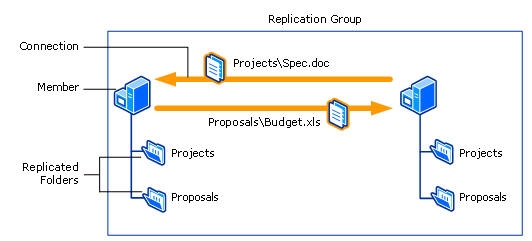
DFSR can be configured using the DFSManagement snap-in, the DFS ReplicationPowerShell module, and the dfsradmin and dfsrdiag WindowsCommands that can be installed either individually or as part of Remote Server Administration Tools (RSAT).
However, a SOC Analyst typically will not have access to traditional GUI of a Windows server but usually would have access to servers via live response features provided by different Endpoint Detection & Response (EDR) tools. Therefore, this article is a focus on how a SOC analyst can understand DFSR using live response.
Locating DFSR Configuration
If a server is setup to use DFSR the configuration folder will be located at C:\SystemVolume Information\DFSR\Config.
Within this folder there are a few XML files.
- DfsrMachineConfig.XML - The local machine‑level configuration file used by DFSR to store essential metadata about the server’s DFS Replication settings.
- Replica_{ReplicationGroupGUID}.XML- Describes the replicated folder and its rules.
- Volume_{VolumeGUID}.XML - Describes the NTFS volume and DFSR's relationship with that disk.
The ReplicationGroupGUID is a unique identifier assigned to a replication group. A replication group defines which folders are replicated, which members participate, and how and when replication occurs.
The VolumeGUID is a GUID for the WindowsVolume e.g. C:\, D:\
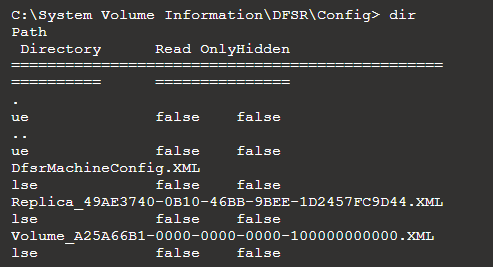
Please note that while this example focuses on the System Volume Information folder on the C: drive, every NTFS volume has its own System Volume Information folder. If DFSR is configured on other volumes, the relevant data will be stored within the System Volume Information folder on those specific drives, for example D:\ or E:.
We’ll explore more about what you can expect to find within these configuration files.
Replica XML File
The Replica_{ReplicationGroupGUID}.XMLis the configuration file for the replication group. A replication group is a logical container that defines which servers and folders they replicate and how and when replication occurs.
If there are multiple replication groups you will have multiple Replica_{ReplicationGroupGUID}.XML, one for each replication group represented by the GUID that is generated for the replication group.
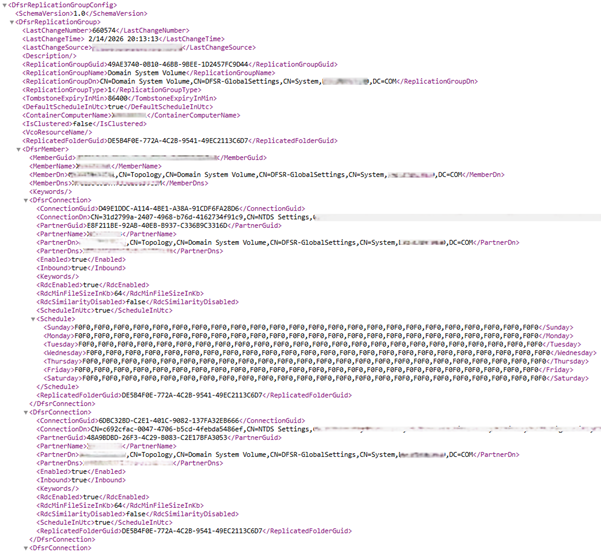
While this file contains many different keys, there are specific ones that provide valuable information from a SOC analyst perspective.
- You can see the LastChangeNumber is a counter that increments every time there is a replication group configuration change which indicates how long the replication group may have existed for and how much replication occurs.
-
LastChangeTime indicates when the most recent replication event occurred, and LastChangeSource shows which replication group member triggered that change. Because the source is recorded as a DNS name, it is easy to attribute the activity to a specific server.
- You can see the ReplicationGroupName and ReplicatedFolderGuid that is being replicated. For domain controllers that replicate the SYSVOL folder this will always be the Domain System Volume.
- For each partner in the replication group, its DNS name will appear in the PartnerDns field.
- There are other important details such as whether the partner is enabled in the replication group. Under Schedule you can see the replication scheduled. In the example shown above the schedule is typical of domain replication where full replication is allowed 24/7.
There are other keys and you can read the Active Directory schema from Microsoft to find outwhat purpose each key serves Active Directory Schema (AD Schema) - Win32apps | Microsoft Learn.
Volume XML File
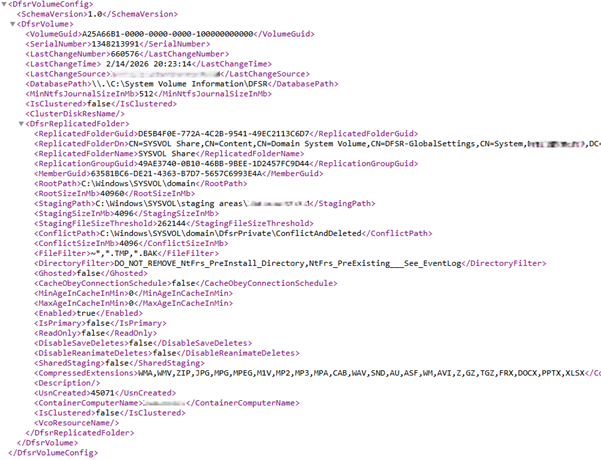
Again, while there are many different keys in this file there are specific ones, that from a SOC Analyst's perspective, provide us information.
- You will also notice a LastChangeNumber, LastChangeTime and LastChangeSource. You might be wondering why these differ. This is simply due to the fact I pulled these files a few minutes apart so you can see based off this that replication is a constant thing.
- All the keys under DfsrReplicatedFolder canbe correlated with the replication group in Replica_{ReplicationGroupGUID}.XML.For example, you will be able to correlate the ReplicatedFolderGuid.
- The RootPath is the path to the folder being replicated. Each member of the replication group maintains this folder. Changes made on one member are automatically replicated to the others to ensure consistency across the environment.
- The StagingPath is the location that DFSR will use to temporarily store files that are about to be replicated or have just been received.
- The ConflictPath is a path used to handle conflicts as two replication group members may edit a file at the same time, and this folder is used to handle these clashes.
- The FileFilter key tells DFSR what file patterns it should exclude from replication.
- The CompressedExtensions key is a list of file types that DFSR will not compress before replication. Normally during replication files are compressed to reduce bandwidth. However, in the example shown these are already compressed file formats that don’t need to be recompressed.
There are other keys and you can read the Active Directory schema from Microsoft to find outwhat purpose each key serves Active Directory Schema (AD Schema) - Win32apps | Microsoft Learn.
So Why is this Important for a SOC Analyst?
There are several use cases where you may see DFSR such as Domain Controllers use DFSR to replicate the SYSVOL folder that contains group policies and login scripts.
File shares that are part of a highly available cluster will use DFSR to replicate folders and files across the file shares making sure that each file share is the same which can help for performance reasons such as hosting file shares in geographically distant locations in cases where companies have different offices. There may also be situations where a company needs to ensure files remain highly available and if one file share goes down another file share can take its place.
However, from a SOC Analyst's perspective, why is this important and how should it impact your investigations and remediation actions?
Understanding how DFSR works means that we can provide a more accurate investigation and take the correct remediation action where DFSR is involved.
If a malicious file is identified on a file share, reviewing replication details allows you to confirm whether it is part of a replication group and determine which additional endpoints may also hold a copy. This is essential to ensure complete eradication across the environment.
It is also important to note that files detected in the StagingPath or ConflictPath are not in their final replicated state. The RootPath represents the end location of replicated content. Failing to account for this can result in incomplete remediation.